Screenshot feedback that keeps the evidence
Pages change. Deploys happen. The screenshot is what stops a report from becoming an argument about whether the problem was ever there. ClickCues stores the view with the report, when the page supports capture.
Screenshot capture in ClickCues stores an image of the view a reviewer was looking at as part of the feedback record, together with the page URL, browser, OS, and viewport. Capture depends on what the page allows, so a report may arrive with page context and no image.
Free 7-day trial · Card only at checkout · Manage from Settings
Clear feedback. Fewer revisions. Faster launches.
Used by freelancers, agencies, and marketing teams
Try the widget
The reviewer side, state by state
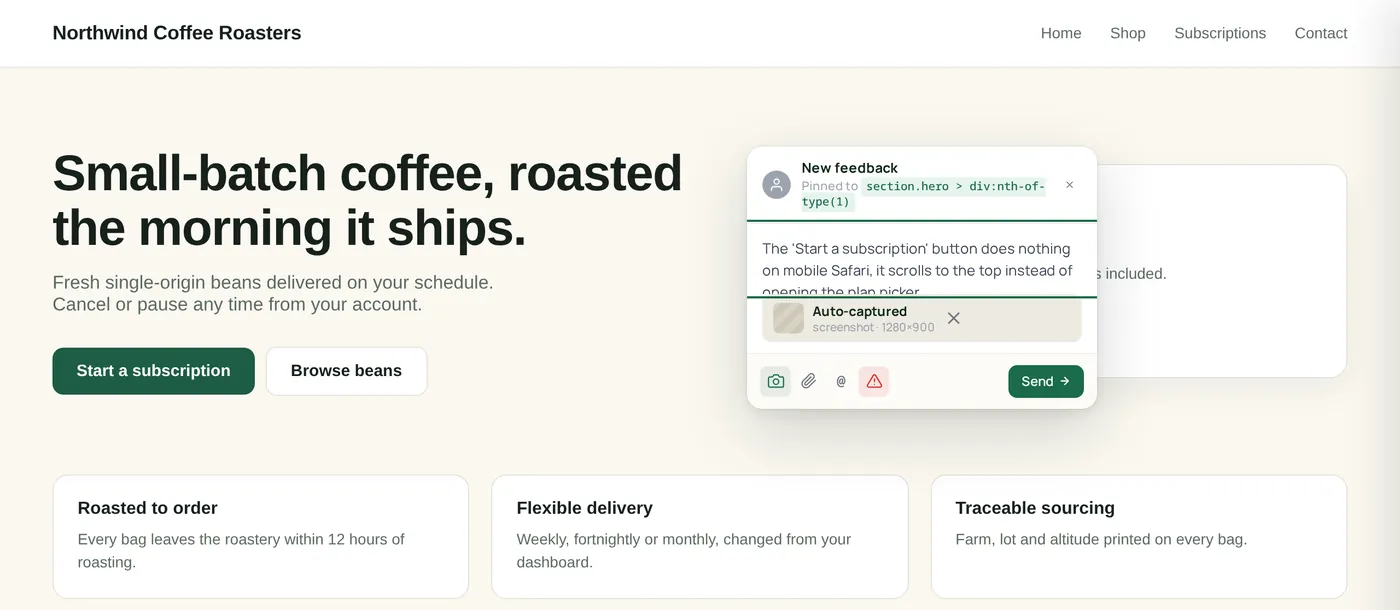
Switch between the states a reviewer actually moves through. This is the real widget interface, not a rendering of it.
A feedback item with its captured screenshot and page context
The Problem
"I cannot reproduce what they saw"
The Old Way
- The page was fixed, redeployed, or changed before anyone looked
- The screenshot is a phone photo of a laptop screen, cropped
- Nobody recorded which browser or screen size the reviewer used
- Images live in chat, the report lives somewhere else
The ClickCues Way
- The captured view is stored on the item, dated, at the moment it was reported
- The reviewer never has to take, crop, and upload anything
- Browser, OS, viewport, and URL sit next to the image
- Image and report are one record, not two things to match up
The record
What is stored with a captured report
A screenshot on its own is a picture. Paired with the page state, it becomes something a developer can act on without another round of questions.
- The view the reviewer had
- The visible page area at the moment of submission, so the report reflects what they were actually looking at.
- Reviewer markup
- Reviewers can mark up the capture before sending, so the important part of the image is called out rather than described.
- Page URL
- The full address, including the route, so the same page can be opened again.
- Browser and OS
- Recorded automatically, which matters when a rendering issue only appears in one engine.
- Viewport size
- Stored with the report, so a layout problem at one width is not chased at another.
- Private storage
- Captures are held in private storage and served through expiring links scoped to the project.
Scope, honestly
When capture is available, and when it is not
Capture is produced from the page in the reviewer's browser, so what the page allows decides the outcome. Cross-origin embeds, restrictive content policies, and some protected environments can prevent an image from being produced. When that happens the report still arrives with the URL, browser, OS, viewport, and the reviewer's description. We describe this as capture when supported rather than promising an image on every submission.
Real screenshots
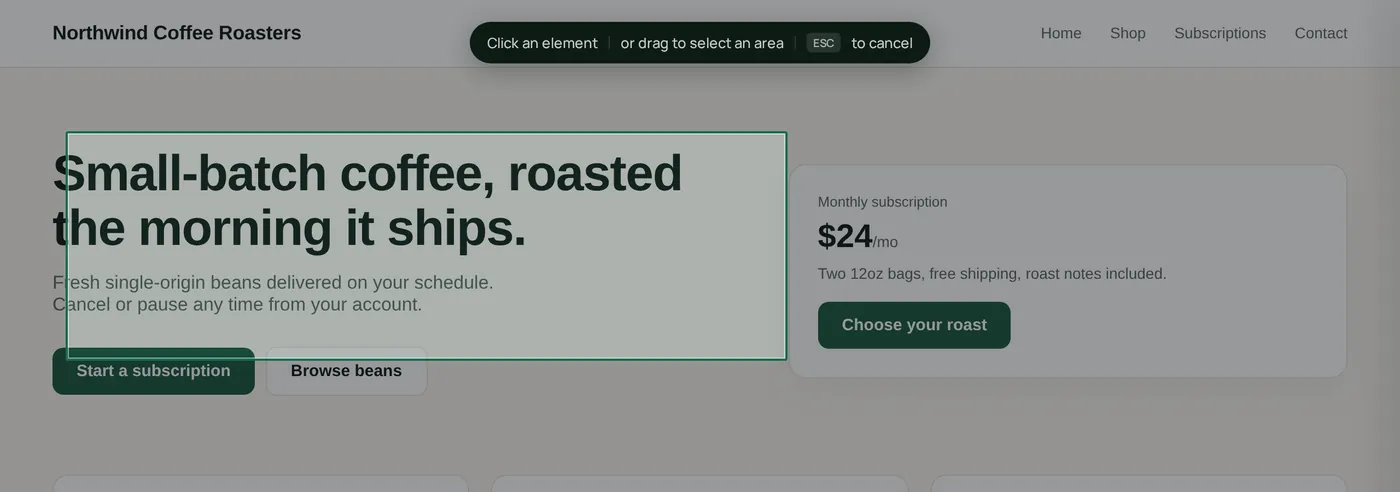
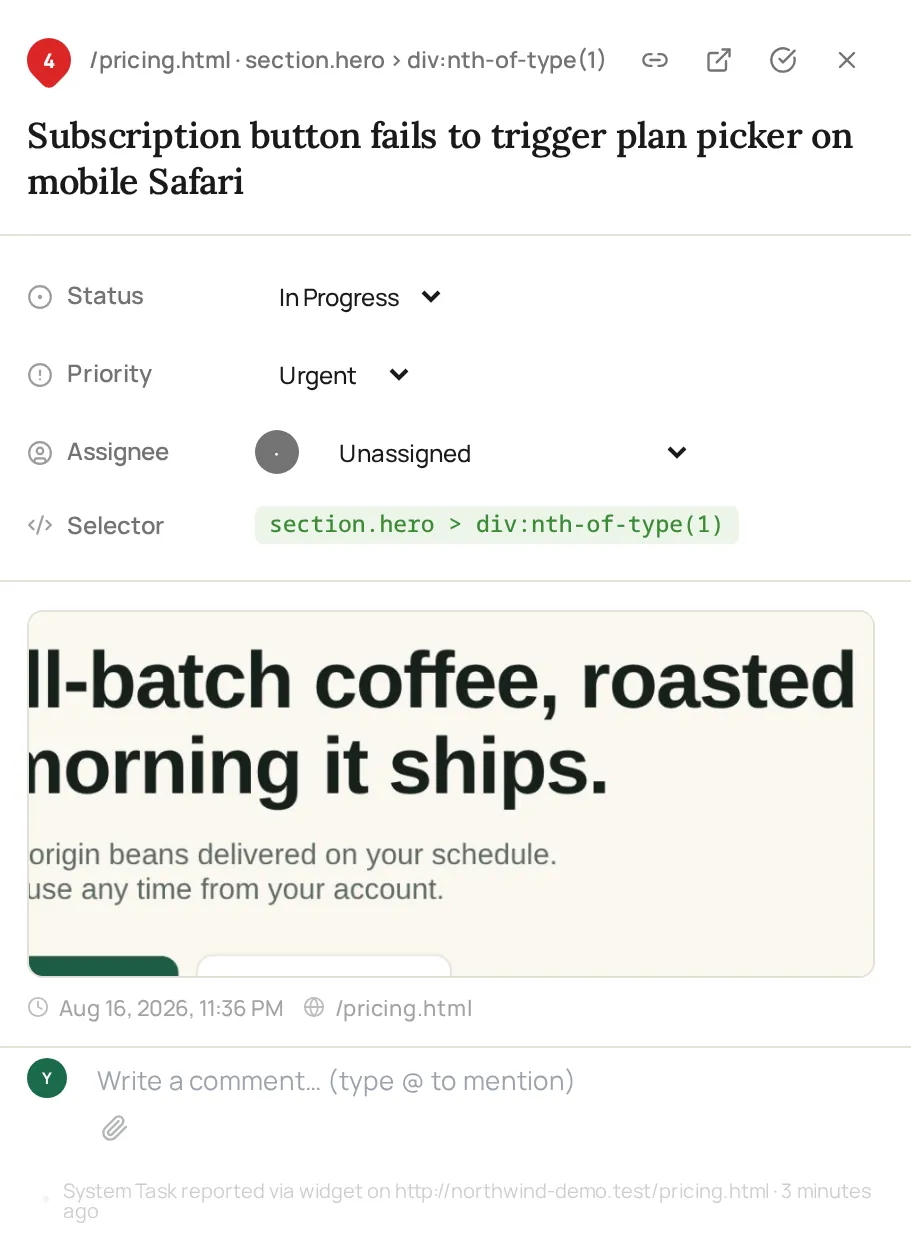
Capture, as it actually happens
These frames are from one real capture: selecting a region on a live page, then the screenshot attached to the comment.
How it works
How a capture becomes evidence
The reviewer does not switch tools, and your team does not chase an attachment.
The reviewer submits from the page
Feedback is written on the page under review. Capture happens as part of that submission rather than as a separate upload step.
The view is captured and marked up
When the page supports capture, the visible area is stored with the report and the reviewer can highlight the part they mean before sending.
Context is attached automatically
URL, browser, OS, and viewport are recorded alongside the image, so the picture comes with the conditions that produced it.
Your team reopens the exact scene
Open the item and you have the image, the page, and the environment together, which is usually enough to reproduce without a follow-up thread.
Features
Details that make a capture worth keeping
No screenshot app, no upload step
The reviewer never leaves the page to take a picture. Removing that step is why reports arrive with images instead of vague descriptions.
Point at the part of the image that matters
Reviewers can draw on the capture before sending, so a busy page still communicates one clear request.
The picture plus the conditions
Browser, OS, viewport, and URL are stored with the image so the report can be reproduced rather than interpreted.
Captures are not public files
Images live in private storage and are served through expiring links scoped to the project they belong to.
At a glance
What capture preserves
Who relies on the image
Roles where evidence saves a round trip
Keep exploring
Related to visual evidence
- Website annotation tool
The element reference stored next to the captured view.
- Bug reporting for dev and QA teams
Using captures and environment data to reproduce issues.
- Feedback board
Where captured reports get triaged and closed.
- Website feedback widget
How capture reaches the page reviewers are on.
- Security
How captures and project data are stored and accessed.
FAQ
Questions about screenshot capture
Last updated: August 2026
Keep the picture with the report.
Start your 7-day free trial and stop reconstructing what a reviewer saw last Tuesday.